

BETSTAR77 TodayPay gives verified players a clear way to review payment details, track transaction status and contact support when a request needs help. The best experience starts before any cash in request. You need accurate account details, a clear budget, and a careful look at the terms shown on the platform.
What Is BETSTAR77 TodayPay?
BETSTAR77 TodayPay is a payment option available inside the BETSTAR77 account area for verified, legal-age users in permitted locations. It helps users review payment choices, submit accurate details through the official interface and monitor the result in transaction history.
In simple terms, TodayPay is not just about sending a payment request. It also helps the platform check details match records and show whether a transaction needs more attention.
Why This Guide Focuses on Safe Payment Checks?
A strong payment guide should not rely on hype. Instead it should help users avoid mistakes. Payment issues usually come from mismatched details, unclear records, repeated reference numbers or bonus terms that were not checked first. For that reason in BETSTAR77 TodayPay guide focuses on practical checks.
Before Using TodayPay on BETSTAR77
Before you use any payment feature, take a moment to confirm the basics. These checks protect your account and help support teams review requests faster,
- Use only the official BETSTAR77 account area.
- Make sure your account details are accurate and up to date.
- Confirm that your payment method belongs to you.
- Review the cash-in limits shown on the platform.
- Read any bonus terms before selecting a promotion.
- Set a clear spending limit before you start.
- Keep your payment record until the status is clear.
These small checks matter. They can reduce failed records, delayed reviews and repeated support requests.
Information TodayPay May Ask You to Confirm
TodayPay may ask users to confirm personal and payment details for verification. The exact fields can vary, yet the main goal stays the same – the platform needs matching records. Common details may include identity type, identity number, payer email address, mobile number, first name and last name. In most cases the details should match the account and the payment record.
Avoid guessing. If a field is unclear, use BETSTAR77 support before submitting the wrong details. That simple step can prevent a delayed review.
BETSTAR77 TodayPay Cash in Steps
Step 1
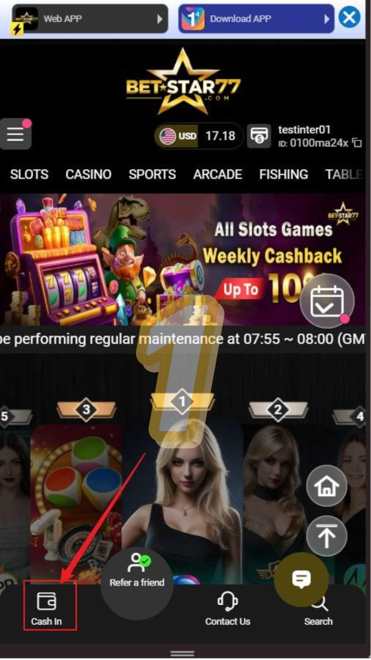
First user needs to log in to your BETSTAR77 account. Then open the Cash In section from the account menu. This area shows the available payment flow and lets you start a new request. Do not use links from unknown messages or third party pages. A safe payment flow should start inside the official account area.
Step 2
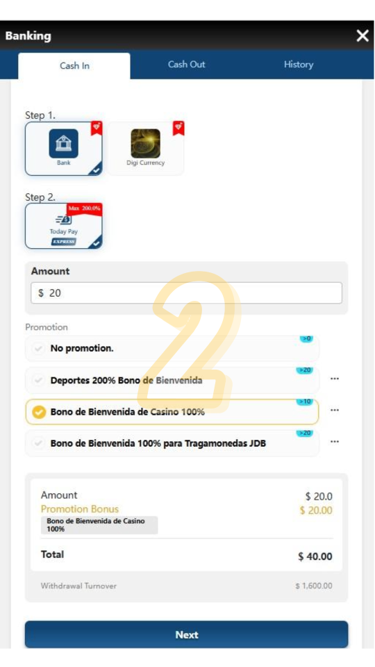
Next choose your preferred cash platform. The sample screen shows options such as Bank and Digi Currency. For this flow select Bank then choose TodayPay. This step matters because the selected platform controls the next fields and payment instructions.
After selecting TodayPay enter the amount you want to submit. The screenshot shows a sample amount range of $6 to $10,000. However, the live limit may change, so follow the range displayed in your own account. If a promotion option appears, review the bonus rules before choosing it. This helps avoid confusion about wagering terms, expiry times or eligibility.
- Enter the cash-in amount carefully.
- Check the promotion field only after reading the terms.
- Use the Next button when the amount and promotion selection look correct.
Step 3
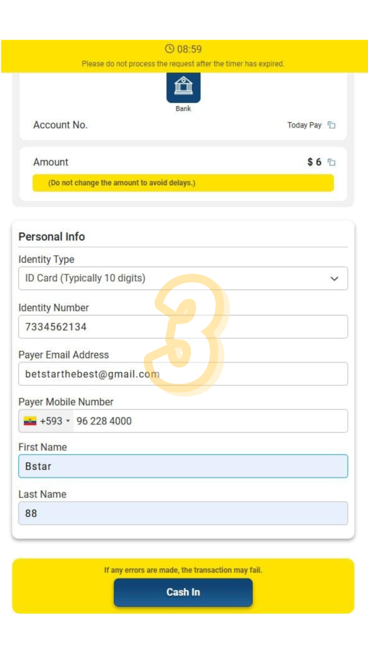
The next screen may ask for personal information. Fill in the details exactly as they appear on the verified account and payment record. The source flow includes these fields,
- Identity type, such as ID card, passport or taxpayer identification number.
- Identity number.
- Payer email address.
- Payer mobile number.
- First name and last name.
Review the information before pressing Cash In. Even a small mismatch can delay the request.
Step 4
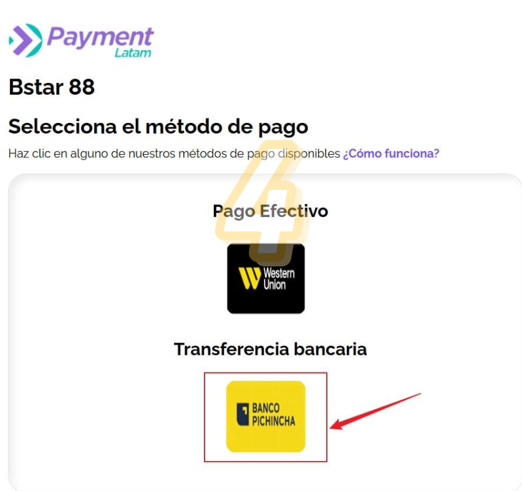
After the Cash In button TodayPay shows the available payment methods. The source screen includes Cash Payment and Bank Transfer.
Choose the method that matches the payment you plan to use. In this example the next screenshots follow the Bank Transfer route.
Step 5
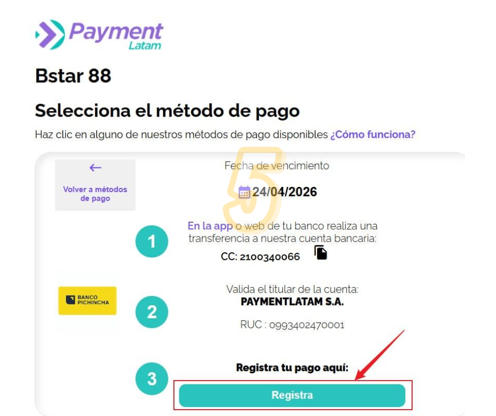
When Bank Transfer is selected the page displays bank transfer instructions. Read the bank name, account details and payment code shown on the screen. Then click Register Your Payment. This tells the system that you are ready to submit the bank transfer record for review.
Step 6
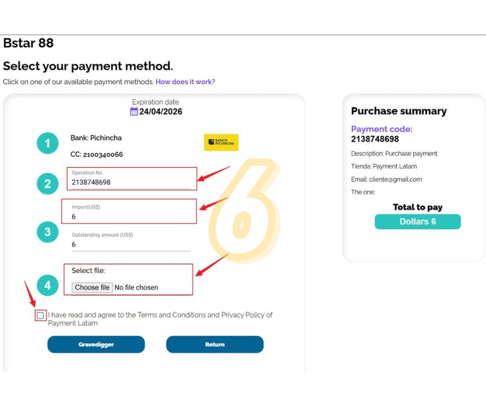
Now add the transaction details. Copy the operation number from the payment code area, enter the requested amount and upload a clear image of the bank-in slip.
Before saving, check every field again. Then click ENGRAVE or Save, depending on the label shown in the live interface.
- Operation number from the payment code section.
- Requested cash-in amount.
- Clear bank-in slip image.
- GRAVEDIGGER / Save button after the details are complete.
Step 7
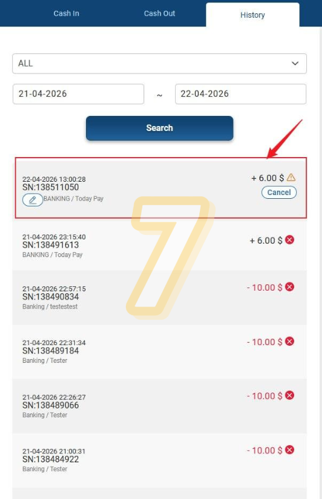
After saving the request, return to the Banking page and open the History tab. This area shows your cash in records and helps you confirm that the request appears in the account. Check the date, amount, transaction number and status. If anything looks wrong, take a screenshot and contact support with the payment record
Step 8
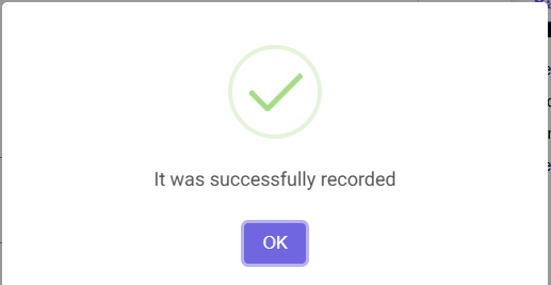
Once the request enters the system the payment still needs verification. A successful record message usually means the request was saved. It does not always mean the final payment review has finished. Wait for the verification result before submitting the same payment again. Repeating the request can create duplicate records and slow down support review.
Common TodayPay Issue - Duplicate Transaction Number
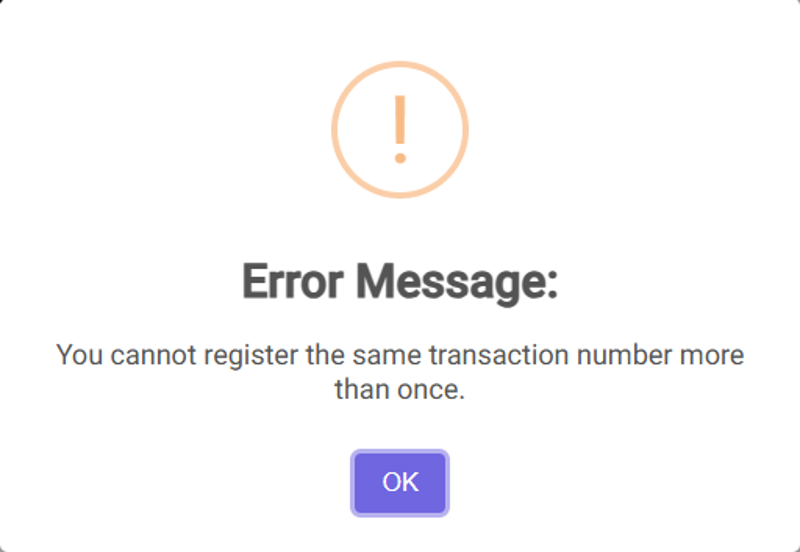
One common error appears when a transaction number has already been registered. This can happen when a user submits the same reference more than once or when a previous record still exists in the system.
If this message appears do not keep resubmitting the same details. Instead compare your payment record with the account history. Then contact support with the reference number, amount and time shown on your receipt.
When to Contact BETSTAR77 Support?
Support should be your next step when a payment status looks delayed, unclear or different from your own record. It also helps when the platform shows an error that you cannot resolve safely.
Contact support when,
- A transaction stays pending longer than expected.
- The amount does not match your own payment record.
- A payment proof image failed to upload or looks unclear.
- A duplicate reference warning appears.
- A promotion or bonus term seems unclear.
- You are not sure which payment record belongs to your request.
Before you message support, gather the account username, payment amount, payment time, reference number and screenshot of the status page. This keeps the conversation clear and saves time.
FAQ
What is BETSTAR77 TodayPay?
BETSTAR77 TodayPay is a payment option shown inside the BETSTAR77 account area for verified legal-age users in permitted locations. It helps users review payment options, submit accurate details, and track status records.
Why does TodayPay ask for personal details?
TodayPay may ask for details so the platform can match the account, payment method, and transaction record. Accurate details can reduce delays and failed reviews.
What should I do if my TodayPay record is pending?
Check your transaction history first. If the status does not change or the details look wrong, contact support with your payment time, amount, reference number, and screenshot.
Why do I see a duplicate transaction number message?
This usually means the same reference number already exists in the system. Do not keep resubmitting it. Compare your record with account history and contact support.
Can I select a promotion with TodayPay?
A promotion may appear depending on your account and the active offer. Always read the terms before choosing any bonus because requirements can differ.
How can I make TodayPay safer to use?
Use the official account area, keep payment records, set a budget, review bonus terms, and contact support when a status or error message is unclear.
Discuss This Guide...
Got questions or insights? Join the conversation and explore more tips from the community.